Guide · 5 min read
How to Repair a PDF and When Local Tools Cannot Fix It
Try local PDF repair for damaged file structure, review recovered pages, and learn when a fresh download or source export is the better fix.
Browser-based recovery for unencrypted PDFs. Keep your original file.
Verification basis
Checked on October 26, 2026: a generated two-page PDF with a broken cross-reference offset produced readable output. A header-only file failed. Recovery of other defects is not guaranteed.
Read the DayFiles workflow testing method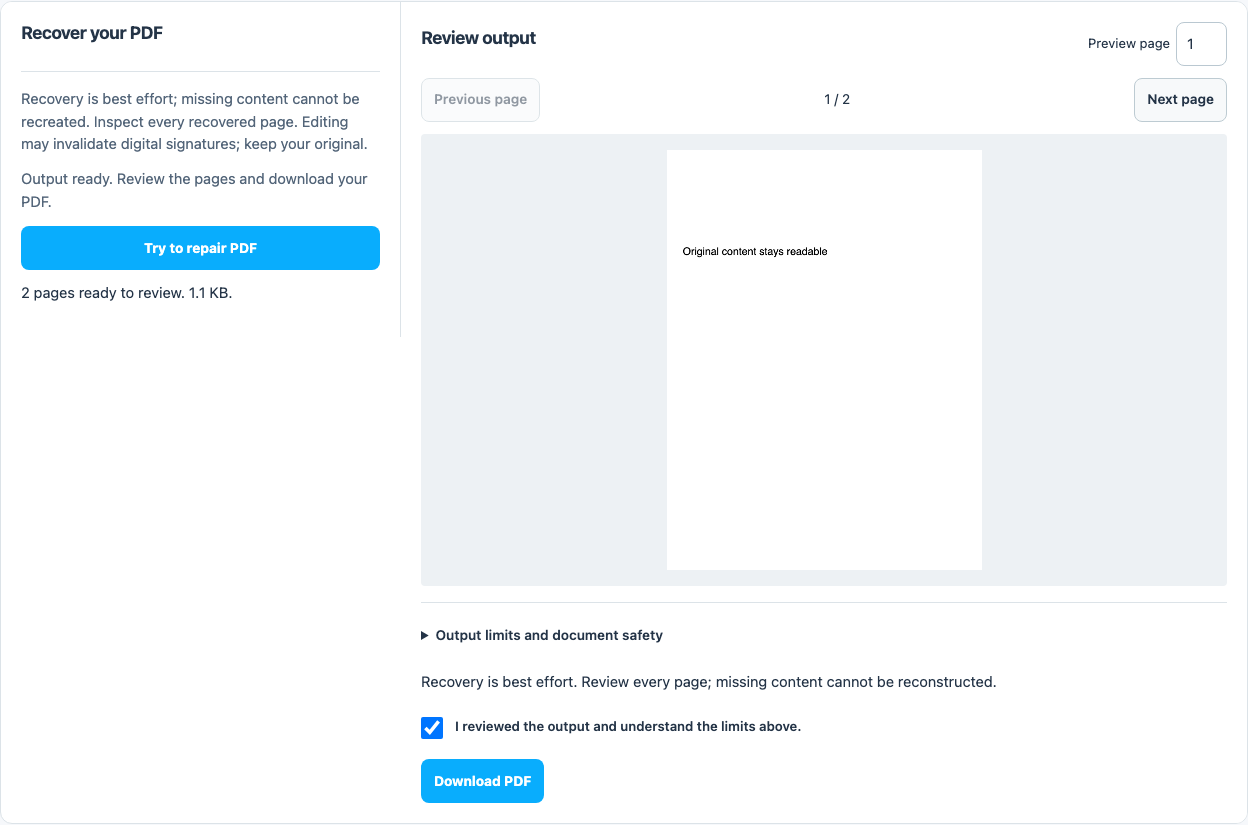
Direct answer
To repair a PDF without uploading it, open Repair PDF, choose the damaged copy, and run the recovery attempt. If output is available, inspect every page before downloading. Structural repair may recover readable objects, but it cannot recreate missing text, images or pages.
First decide whether the file needs repair
A viewer error does not always mean the document is corrupt. Try downloading the file again and opening the copy in another PDF reader. If the sender can export the source document again, that fresh export is often the most reliable solution. A password prompt needs the correct password, not a recovery attempt.
| Symptom | First action | What repair can change |
|---|---|---|
| Download stopped or file is empty | Download again or request a complete copy | Missing bytes cannot be invented |
| PDF reader reports a structural error | Try the local repair tool on a copy | Some readable objects may be rebuilt |
| Pages open but content is missing | Compare with the source document | Successful parsing does not prove complete recovery |
| Password is required | Ask the owner for access | This repair tool rejects encrypted PDFs |
How to try local PDF repair
The tool accepts PDFs up to 50 MB and 200 pages. Larger or badly damaged files may exceed the browser’s available memory.
- Open Repair PDF and choose your damaged PDF copy.
- Select Try to repair PDF. Leave the page open while recovery runs; Cancel stops the worker.
- If Review output appears, use the page controls to inspect every recovered page. Compare text, diagrams and page order with any known-good copy.
- Check I reviewed the output, then Download PDF. Save under a new name and open it in the reader used by your recipient.
What the recovery attempt actually checks
The browser worker first attempts structural recovery using qpdf. When that cannot recover the file, a fallback attempts to rewrite readable PDF objects. The result is checked with another parser and a page preview is rendered. These checks are useful evidence that output can be read, but are not a comparison with a complete original.
Our sample had a broken cross-reference offset rather than deleted page data. Recovery produced a readable two-page file. A second sample containing a PDF header but no document objects produced an error and no download.
Review more than the first page
Check the last page as well as the first. Inspect small print, images, annotations, form fields and attachments that matter to the recipient. A matching page count alone is insufficient: a page can survive while one of its objects does not.
Work on a copy. Rewriting a PDF can invalidate existing digital signatures; these tools do not certify signatures or restore their validity.
When to stop retrying
If the tool cannot read the document, obtain another copy from the sender, backup or original application. Repeatedly rewriting the same damaged bytes cannot supply absent content. If output looks incomplete, keep it as a recovery candidate rather than overwriting the source.
Processing stays in your browser. Choosing a file does not upload it to DayFiles or a conversion service. This does not guarantee that every document can be repaired offline: the tool and its required browser assets must first be available on your device.