
Guide · 5 min read
How to Create Reusable PDF Workflow Recipes
Rotate, number and watermark a PDF in one local workflow. Save a reusable recipe, import its settings for another document, and review the result.
Verification basis
Checked on October 26, 2026: a three-step recipe imported and ran on a generated two-page PDF. Exported rotations were 90°. The screenshot shows the numbered DRAFT output.
Read the DayFiles workflow testing method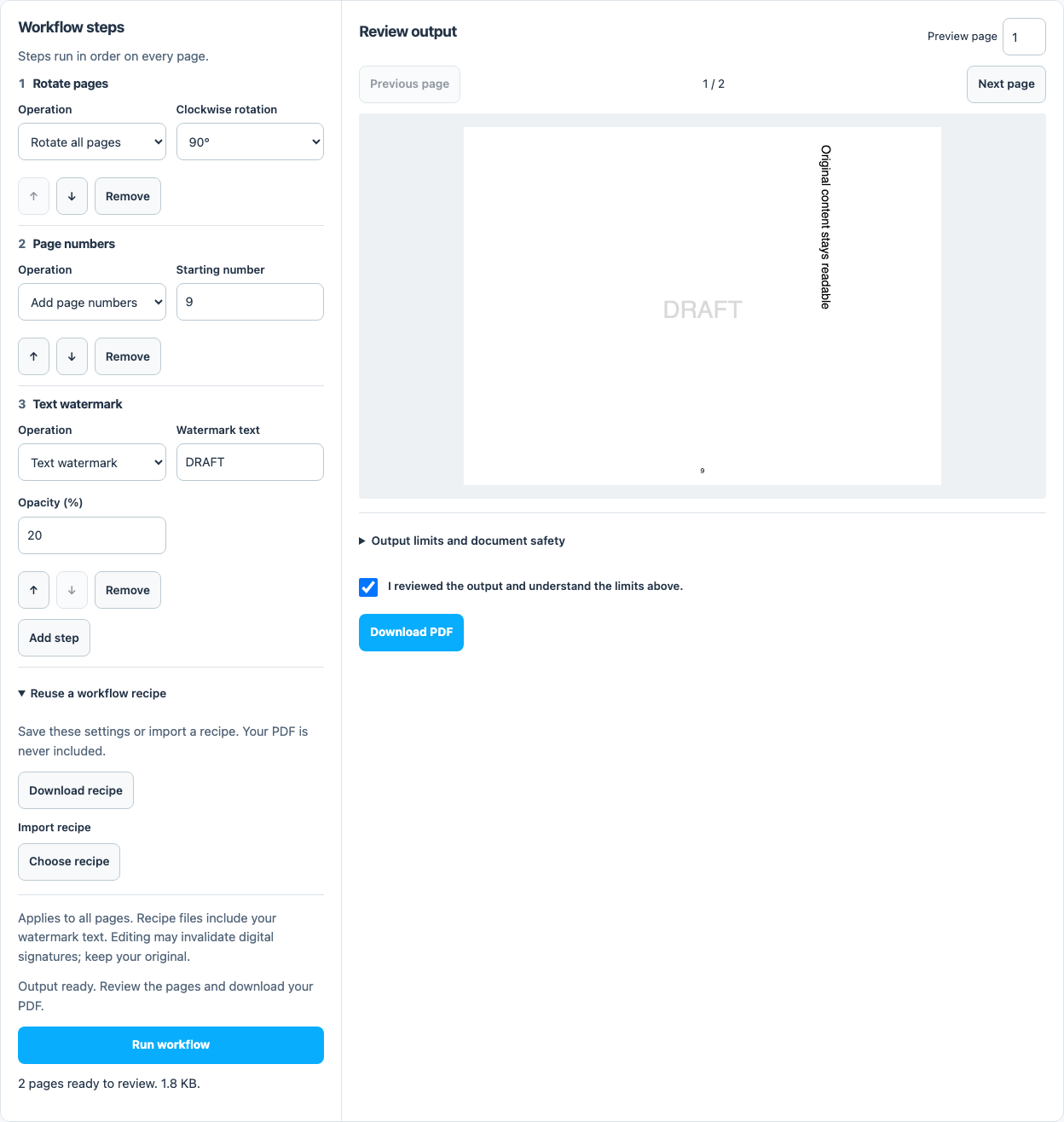
Direct answer
PDF workflows runs an ordered sequence of rotation, page numbering and text watermark steps on one PDF. Download the recipe to reuse those settings with another document. This is user-run PDF workflow automation in the browser, not scheduled processing or a folder batch service.
What a recipe can contain
A recipe contains 1–12 operations. Each operation applies to every page of the selected PDF. You can rotate pages, add page numbers, or add a text watermark. Image logos, form creation, compression and repair are separate tools and cannot be added as recipe steps.
Choose a PDF up to 50 MB and 200 pages. Recipes do not select your documents or run unattended; you explicitly choose the next PDF and start each run.
| Operation | Settings | Effect |
|---|---|---|
| Rotate all pages | 90°, 180° or 270° clockwise | Changes orientation for later steps |
| Page numbers | Starting number from 1 to 999999 | Adds sequential labels to the pages |
| Text watermark | Text and opacity | Adds the chosen text to every page |
Build and review a workflow
- Open PDF workflows and choose a PDF.
- Keep or change the first operation. For the pictured example, choose Rotate all pages and 90° clockwise.
- Select Add step and choose page numbering. Set the starting number to 9 for the example, or 1 for ordinary documents.
- Add a text watermark step with DRAFT and 20% opacity. Use short plain-English text.
- Move steps up or down if needed, then select Run workflow.
- Review each output page. Confirm the review and download the PDF only when orientation, numbering and watermark placement are correct.
Why step order matters
Steps run from top to bottom. Rotation changes the visible page in which later numbers and watermarks are positioned. Adding a mark before rotating can produce a different final placement from rotating first. Put rotation first when you want later labels positioned for the final orientation.
Remove an unwanted operation instead of relying on a later step to undo it. Repeating a watermark or numbering step can add overlapping marks. If the result is wrong, adjust the recipe and run it again against the original input.
Save the settings for another PDF
Open Reuse a workflow recipe and choose Download recipe to save a JSON settings file. Later, choose the next PDF and use Import recipe to restore the saved steps. Review the imported settings before running: the intended starting page number or watermark may differ for the new document.
The recipe contains settings, including watermark text, but no PDF bytes. It is not saved automatically. Keep sensitive names or reference numbers out of watermark text if you plan to share the recipe. Imported JSON is validated and limited to 20 KB; do not use a PDF file in the recipe picker.
Recover from a failed run
Cancel stops the worker. The selected original remains available, so you can simplify the steps or try again. Changing settings invalidates the previous output; run the revised workflow before downloading a new copy.
Use the individual tools if you need a task outside the supported operations. This workflow does not process multiple PDFs at once, watch a folder, call a cloud service or verify signatures.
Work on a copy. Rewriting a PDF can invalidate existing digital signatures; these tools do not certify signatures or restore their validity.