
Guide · 5 min read
How to Add a Logo or Image Watermark to a PDF
Add a PNG or JPEG logo to every PDF page without uploading. Adjust image size and opacity, then check legibility before downloading the watermarked copy.
Verification basis
Checked on October 26, 2026: the generated PNG overlay appeared in the output preview and the exported PDF retained two pages. Review contrast on your own pages.
Read the DayFiles workflow testing method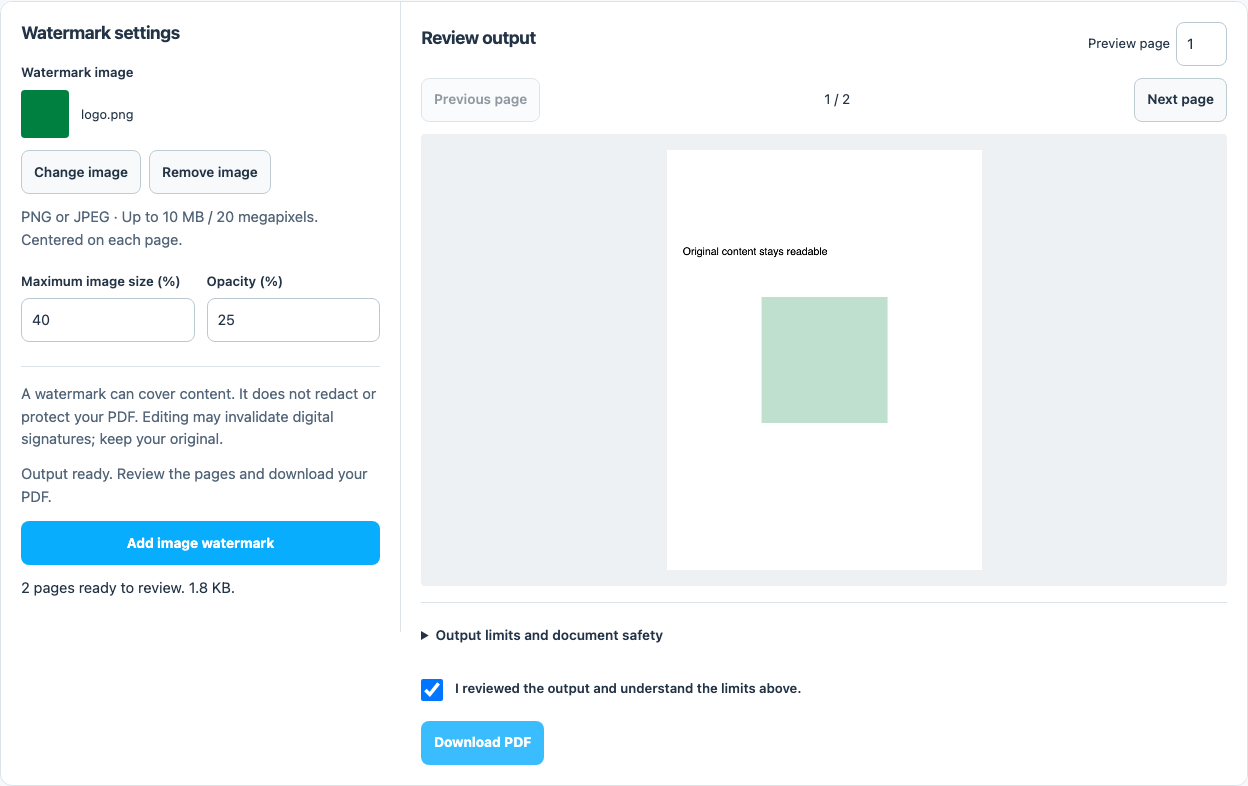
Direct answer
Open Image watermark PDF, choose a PDF and a PNG or JPEG logo, then set its size and opacity. The image is centered on every page while retaining its proportions. Review the output before downloading; a watermark adds visible branding but does not remove or protect underlying content.
Choose the right image for the document
A transparent PNG lets the page show around the logo without a rectangular background. JPEG is suitable when the background is intentional, such as a rectangular badge. Both formats keep their proportions when scaled; the tool does not stretch the logo to fill a page.
Use a PDF up to 50 MB and 200 pages. The watermark image must be PNG or JPEG, no larger than 10 MB or 20 megapixels. SVG files must first be exported to a supported raster format.
Add a PNG or JPEG watermark step by step
- Open Image watermark PDF and choose your PDF.
- Choose the Watermark image. Confirm its thumbnail and filename; Change image replaces it and Remove image clears it.
- Set Maximum image size and Opacity. Try the defaults of 40% and 25% as a starting point.
- Select Add image watermark. Inspect the preview, including pages with different dimensions or rotation.
- Confirm I reviewed the output and download the watermarked PDF. Open the saved copy and check that small text remains readable.
Balance logo size with readability
Maximum image size accepts 5–90% and opacity accepts 5–100%. The logo fits within the selected fraction of the visible page while preserving its aspect ratio. A wide logo and a square logo therefore occupy different shapes at the same percentage.
At 100% opacity an image can completely cover text underneath it. Lower opacity helps the page remain readable, but pale branding may disappear when printed. Review a representative page with dense text and another with a photograph.
| Problem | Adjustment |
|---|---|
| Logo dominates the page | Reduce maximum size |
| Text behind the logo is hard to read | Reduce opacity or choose a less dense logo |
| White rectangle around the mark | Export a transparent PNG from the original artwork |
| Logo looks soft when enlarged | Use a higher-resolution source within the image limits |
Understand placement and security limits
This tool centers one image on every page. It preserves the original dimensions and rotation; it does not provide corner placement, repeated diagonal tiling or a page-range selector. For a written DRAFT label, use the text watermark tool instead.
An overlay is not redaction. It does not securely erase text beneath the logo and should not be used to hide account details or other sensitive information. Nor does it prevent copying or establish copyright ownership.
Work on a copy. Rewriting a PDF can invalidate existing digital signatures; these tools do not certify signatures or restore their validity.