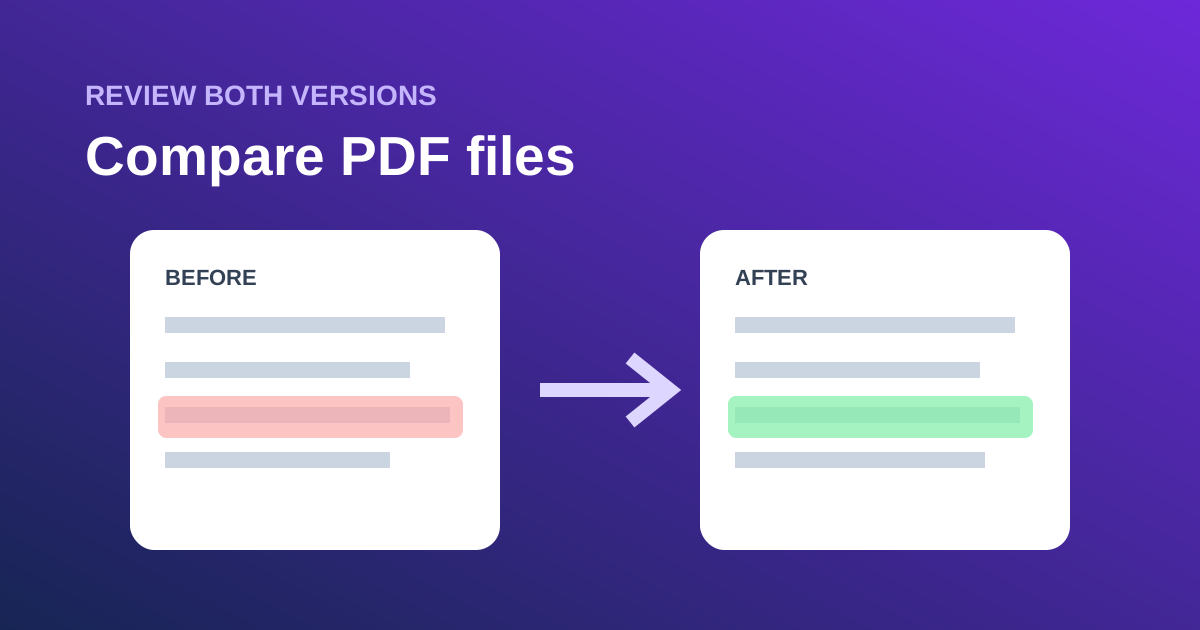
How do you compare two PDF files when a document has been revised but nobody recorded the changes? Start by checking page counts, compare text and rendered pages separately, and review every highlighted difference against both originals. The free Compare PDF Files tool performs the comparison locally and creates a self-contained report.
What does a PDF comparison check?
A PDF comparison checks two document versions for differences in extracted text and visible rendered pages. Text comparison helps identify added, removed, or changed wording. Visual comparison helps catch layout movement, image changes, stamps, and differences that text extraction cannot explain. Neither method alone represents the whole document.
This is especially useful for contracts, policies, reports, application forms, proposals, and proof copies. It can answer “where should I look?” much faster than reading two long files side by side.
When should you compare two PDFs?
Compare files when the version label is uncertain, a document returned from review, a regenerated report looks different, or a supposedly final copy has changed. A comparison is also useful before signing or distributing a revised document, provided the responsible person still performs the final substantive review.
It is less useful when the files contain entirely different page orders, one version is a scan and the other is digital text, or the page design was rebuilt from scratch. In those cases, automated results can be noisy.
How to compare two PDF files
- Preserve both originals and name them clearly as the earlier and later versions.
- Check the page count of each file before comparing.
- Open Compare PDF Files.
- Select the earlier PDF first and the revised PDF second.
- Run the local comparison.
- Review the text summary for added, removed, and altered wording.
- Inspect the before, after, and highlighted page images for each changed page.
- If page counts differ, determine whether a page was inserted or removed before trusting later pairings.
- Download the self-contained HTML report and keep it with the two source versions.
- Resolve important changes in the authoritative source application rather than editing from the report.
The current workflow compares up to 40 pages per file. Pages are paired by position: page 1 with page 1, page 2 with page 2, and so on. That rule is predictable, but it means an inserted page can shift every later comparison.
Text comparison versus visual comparison
| Difference | Text comparison | Visual comparison |
|---|---|---|
| Changed sentence | Strong | Usually visible |
| Moved paragraph | May look deleted and added | Strong |
| Replaced image | Weak or absent | Strong |
| Font or spacing change | Usually absent | Strong |
| Scanned page wording | Weak without OCR | Visible as pixels |
| Hidden metadata | Not covered | Not covered |
Use both views as evidence. A text change with no obvious visual difference may be hidden in a small area or represented differently in the PDF. A visual change with identical extracted text may be a layout, image, or font adjustment.
How do inserted pages affect the result?
Suppose version A has ten pages and version B inserts a new page at position 3. A position-based tool pairs old page 3 with new page 3, even though the old content may now live on page 4. Pages 3 through 10 can therefore appear heavily changed.
When page counts differ:
- Compare thumbnails or headings around the first divergence.
- Identify the inserted or removed page.
- Interpret later highlights with the offset in mind.
- If necessary, create temporary copies with matching page order and compare those.
Do not describe a long run of shifted pages as rewritten content until you confirm their actual pairing.
What should a PDF difference report include?
A useful report should identify both file names, list page counts, summarize text differences, and provide visible page evidence. It should remain readable after download without relying on a server session.
The Dayfiles report embeds the relevant comparison data and page images into one HTML file. That makes it convenient for internal review, but it may also contain sensitive document content. Store and share the report with the same care as the PDFs.
What a comparison cannot prove
A comparison does not certify that either file is authentic, approved, legally complete, or safe to sign. It does not validate digital signatures, permissions, attachments, JavaScript, layers, or every non-visible object. It also does not decide whether a wording change is acceptable.
Rendered pages can differ because of font substitution or rendering behavior. Text extraction can produce different reading order from complex layouts. Treat each highlight as a review lead, not an automatic verdict.
For signed documents, use the appropriate signature-validation workflow separately. If the document is a regulated filing, follow the filing authority's required comparison and approval procedure.
Common comparison mistakes
Comparing files with unclear roles
If you cannot tell which file is earlier, the report's added and removed wording becomes confusing. Rename working copies first.
Ignoring page-count changes
An insertion can make later pages look entirely different. Resolve structural changes before line-level review.
Looking only at text
Text extraction misses image replacement, position changes, and some scanned content.
Looking only at pixels
Small wording changes can be hard to spot visually. Text output provides a second signal.
Sharing the report carelessly
An offline HTML report can carry page images and extracted wording. It deserves the same access controls as the originals.
A final review checklist
- Earlier and later versions are identified.
- Page counts were compared first.
- Inserted or removed pages are understood.
- Text changes were reviewed in context.
- Visual highlights were checked against both originals.
- Important changes were resolved by the document owner.
- Signatures and hidden data were handled separately.
- The report is stored as sensitive derived content.
How we checked this workflow
Last checked September 12, 2026. We tested generated PDFs with text replacements and visible page changes. The regression run verified bounded text comparison, highlighted before-and-after page images, and a downloadable self-contained report. It also confirmed that malformed and password-protected inputs fail clearly. This test supports the comparison mechanics; it does not turn a visual report into a legal approval or signature-validation tool.
Use Compare PDF Files for a local page-by-page review. If you first need to remove irrelevant pages from working copies, use Remove PDF Pages while preserving the originals.