How do you add Bates numbers to several PDF files without losing the sequence between documents? Arrange the files in their final review order, select one starting number and prefix, then stamp the complete set in a single run. The free Bates Numbering PDF tool performs that work locally in your browser and exports both numbered copies and a CSV index.
What is Bates numbering in a PDF?
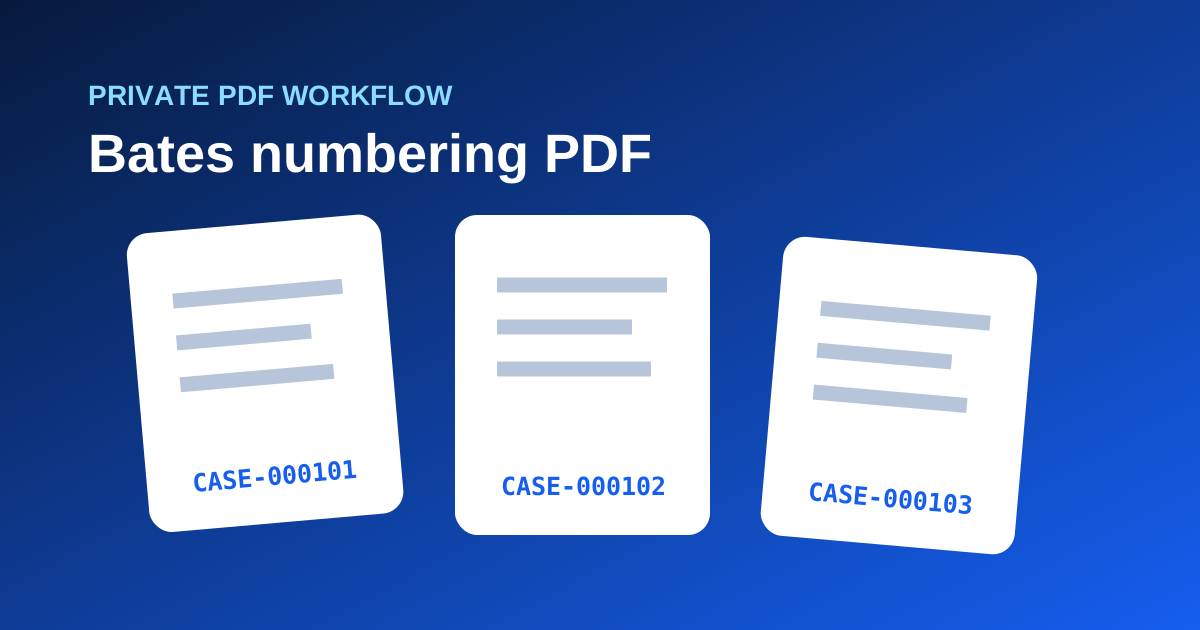
Bates numbering is a page-identification method that places a unique sequential label on each page in a document collection. A label might read CASE-000101, CASE-000102, and so on. Because the number is visible on the page, a reviewer can cite one exact page even when the original files had unrelated names or page numbering.
The important unit is the collection, not one file. If three PDFs form one production set, the last number in the first file should normally be followed by the first number in the second. That continuous sequence is what makes the index useful.
When should you use Bates numbers?
Bates labels are useful for legal discovery, audit evidence, insurance packets, research records, and any multi-file review where people need stable page references. They are less useful for a casual one-page attachment or a document that already has an authoritative record-numbering system.
Use them when these conditions apply:
- several PDFs belong to one review set;
- reviewers need to cite individual pages;
- the original file names do not provide page-level identity;
- a simple index of file ranges will help with handoff;
- the organization has agreed on a prefix and numbering convention.
Do not choose a prefix casually. A client name or matter description can reveal information when the numbered file is shared. Neutral codes are often safer than descriptive labels.
How to add Bates numbers to multiple PDF files
- Create a working copy of every source PDF and leave the originals unchanged.
- Put the files in the exact order in which they should be numbered.
- Open the free Bates Numbering PDF tool.
- Add up to 20 PDFs, with no more than 50 MB and 200 pages in the set.
- Enter the starting number, prefix, number width, footer position, and margin.
- Check the first and last page of each file in the preview for collisions with existing footers.
- Run the numbering process and download the ZIP file.
- Open the CSV index and confirm each source file has the expected first and last Bates number.
- Reopen representative output PDFs and check that their page count and orientation match the source.
The tool preserves the order you set. Changing that order later breaks the relationship between the index and the files, so make the sequence decision before export.
How should a Bates label be formatted?
| Part | Example | Practical choice |
|---|---|---|
| Prefix | CASE- |
Use a short neutral identifier |
| Starting number | 1 or 101 |
Follow the agreed production convention |
| Padding | 6 digits |
Produces labels such as 000101 |
| Position | Bottom right | Choose an area clear of source content |
| Margin | Consistent inset | Keep the label away from trim and page edges |
A fixed width makes labels sort correctly as text. Without padding, CASE-100 may appear before CASE-20 in a basic alphabetical list. Six digits is common for moderate sets, but your team may require a different width.
How do you prevent the stamp from covering content?
Page geometry varies. A portrait letter page, a rotated landscape scan, and a page with an existing footer do not offer the same safe area. Preview the actual pages rather than assuming one margin works everywhere.
Check pages with signatures, footnotes, exhibit labels, and tables that run close to the edge. If the footer overlaps content, change its corner or increase the margin. The visible label should be easy to find without obscuring the evidence it identifies.
Rotation deserves special attention. A page can carry a rotation instruction even when it looks upright in a viewer. The output preview is the reliable place to confirm that the label follows the displayed orientation.
Bates numbering versus ordinary page numbers
| Requirement | Bates numbers | Ordinary page numbers |
|---|---|---|
| Continue across multiple files | Yes | Usually file by file |
| Include a collection prefix | Yes | Usually no |
| Identify one page in a production set | Strong fit | Weak fit |
| Support a file-range index | Yes | Rarely |
| Replace the document's original pagination | No | Sometimes |
Bates labels supplement the source document. They should not be described as proof of authenticity, chain of custody, or legal completeness by themselves. Those conclusions depend on the surrounding process.
What should you verify after export?
Review the exported set as a release artifact. Confirm the first label, last label, continuity between files, readable placement, page count, and file names. Then compare the CSV ranges with the actual PDFs.
If a source contains a digital signature, remember that adding page content changes the document. Consult the person responsible for the signature or filing rules before modifying it. Keep the signed original separately even if a stamped review copy is allowed.
The original file should also remain available if someone later questions an unreadable scan, missing page, or label collision. A numbered copy helps people refer to a page; it does not remove the need for source preservation.
Common Bates-numbering mistakes
Numbering files separately
Running each file from 1 creates duplicate identifiers. Process the intended collection together or record the next starting number carefully.
Sorting after numbering
Renaming or rearranging files after export can make the index misleading. Finalize order first.
Using a revealing prefix
A prefix may appear on every shared page. Use a label appropriate for every intended recipient.
Skipping the output review
A successful download confirms that a file was created. It does not prove that every footer is readable or that the chosen order was correct.
A practical final checklist
- Originals are preserved.
- File order is approved.
- Prefix and starting number are correct.
- Labels do not cover source content.
- Sequence continues across file boundaries.
- CSV ranges match the numbered PDFs.
- Signed-document requirements were checked.
- Final copies were reopened before delivery.
How we checked this workflow
Last checked September 12, 2026. We tested the Dayfiles workflow with generated PDFs of different page sizes and rotations. The regression run confirmed continuous numbering, correct page counts, rotation-aware placement, a downloadable ZIP, and a CSV range index. The 200-page and 50 MB limits are deliberate browser safeguards. Visual review remains necessary because software cannot decide whether a footer is acceptable for a particular filing.
For simpler numbering inside one document, use Add Page Numbers to PDF. For a multi-file production set, start with Bates Numbering PDF and review the exported index before handoff.