How do small teams ship social assets faster without letting every campaign become a custom file operation? The practical answer is to standardize the workflow, not just the tool: start from channel presets, review against one short checklist, and export through one naming and approval path inside Everyday Image Studio.
Why social asset work slows down
Most small teams already have design tools. The problem is rarely that editing is impossible. The problem is that social production becomes fragmented the moment more than one person touches the output.
Typical signs of a weak process are:
- Instagram, LinkedIn, and ad assets all start from different file sizes,
- campaign text is updated in one version but not another,
- scheduling teams receive exports with vague names,
- reviewers comment on spacing and crop issues that should have been caught earlier.
That is why a good social workflow is really an operations system. It protects speed by reducing decision drift.
When this workflow is the right fit
This process works best when a team:
- publishes on several channels every week,
- reuses brand elements across campaign variants,
- has non-design contributors preparing or exporting assets,
- needs social files to move cleanly into scheduling, paid media, or reporting systems.
If the real pain is repeated crop, resize, and export work, Everyday Image Studio should be the main editing hub. If the team later needs broad image conversion or batch compression at scale, the parent image-processing hub is Images.
What should be decided before editing starts?
Before the first asset is touched, lock:
- channel output sizes,
- safe-area rules for text and logos,
- the preset naming convention,
- the export naming format,
- who gives final approval.
Without those decisions, teams waste time debating the same formatting questions on every campaign.
The repeatable social production workflow
Use this sequence for day-to-day output:
- Start from a channel-specific preset in Everyday Image Studio.
- Add campaign visuals and copy within approved safe areas.
- Export one internal draft for review rather than several near-identical options.
- Run a pre-review checklist for dimensions, typography, spacing, and file naming.
- Incorporate review comments into the single working version.
- Export final formats for each channel and place them in one delivery folder.
The value here is not complexity. It is that each stage has a clear purpose: create, review, finalize, hand off.
What the editing workspace should look like before review
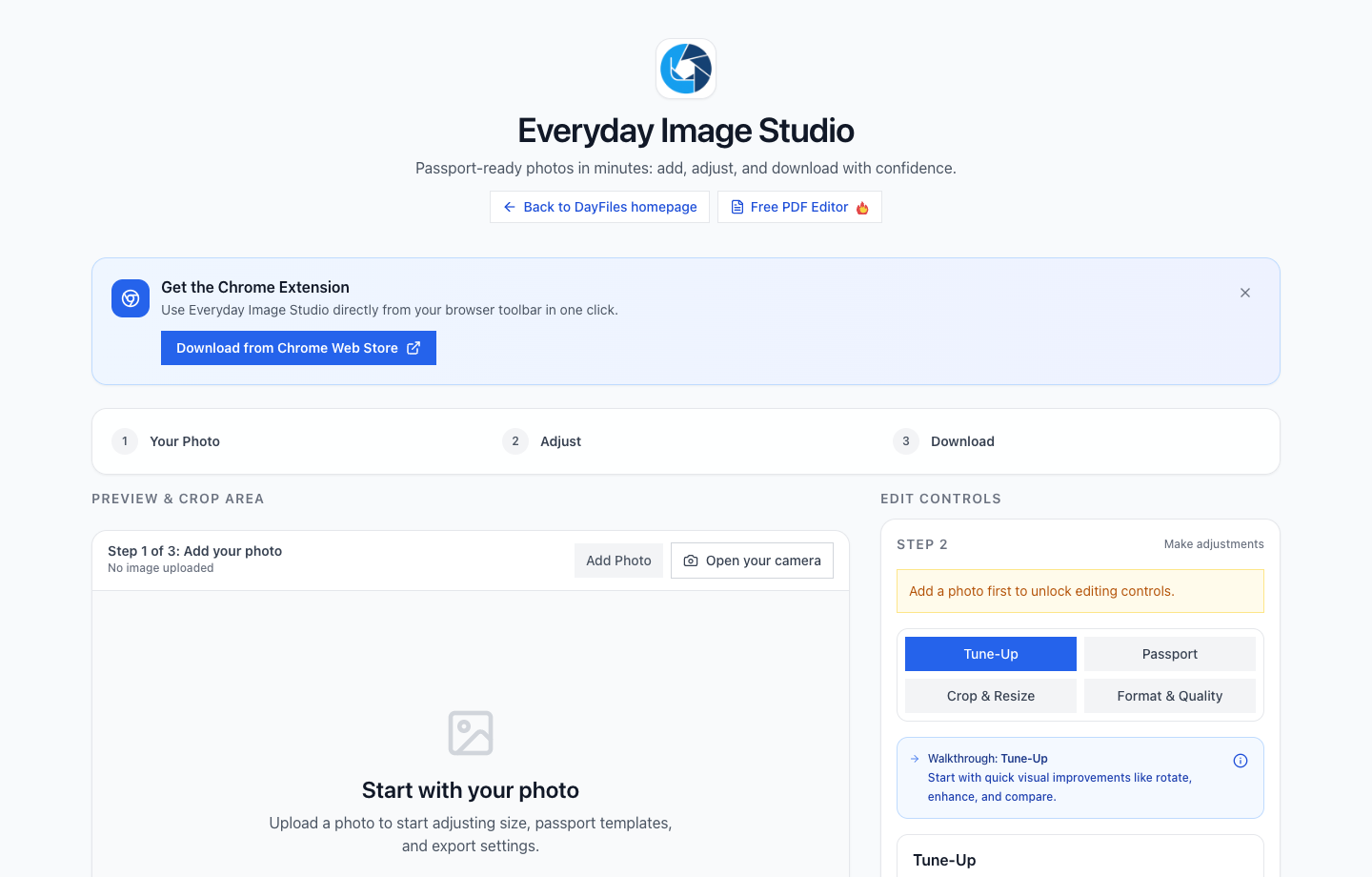
One detail worth calling out: the review handoff becomes easier when the editing surface itself makes it obvious which tool the operator is using. That reduces the “Which version did you export?” confusion that small teams run into all the time.
What should the pre-review checklist catch?
The review gate should focus on the issues that repeatedly create approval churn:
- final dimensions match the destination channel,
- text remains readable on mobile-sized previews,
- the visual hierarchy matches the brand system,
- spacing around logos, buttons, or headlines is consistent,
- exported filenames make version status obvious.
When this check happens before formal approval, reviewers spend less time catching layout basics and more time giving useful campaign feedback.
Preset workflow vs ad hoc social editing
| Requirement | Preset-based workflow | Ad hoc editing workflow |
|---|---|---|
| Size consistency | Strong because every channel starts from a known frame | Weak because files are resized on the fly |
| Review speed | Faster because the checklist is stable | Slower because each asset behaves differently |
| Team handoff | Clear because names and folders are predictable | Messy because exports arrive in mixed states |
| Best fit | Small teams with recurring campaigns | One-off exploratory design only |
This is why the preset library matters. It removes avoidable decisions before they become approval problems.
Common mistakes to remove first
Letting each person create their own "final" preset
If every operator creates a new base file, the workflow loses its standard. Keep a small approved preset library and retire duplicates.
Reviewing before export discipline exists
Reviewers should not be the first people noticing missing dimensions or sloppy file names. The quality gate belongs before the review.
Treating channel differences as minor
LinkedIn, Instagram, paid social, and internal previews may tolerate different dimensions and text density. One asset should not be forced into every destination if the requirements differ.
Forgetting the downstream team
Scheduling, paid media, and reporting teams need more than a visually correct file. They need naming clarity and export consistency so they can use the asset without guessing.
Where this social-production workflow fits in Dayfiles
Use Everyday Image Studio when the main job is crop, resize, cleanup, and export consistency for recurring creative work. If the workflow later involves broader conversion or batch optimization, use Images for those processing-heavy tasks. For broader operating guidance, the closest support article is the Everyday Image Studio Workflow Playbook. If your team assembles campaign decks or PDF reports from final assets, connect the handoff to PDF Toolkit and the PDF Toolkit Operations Checklist.
What the downstream team should receive
The scheduling or paid-media team should not receive a folder full of half-signaled possibilities. They should receive one delivery-ready set with clear names, one stated channel target, and no uncertainty about whether another export is still coming. That handoff standard matters because a social workflow is only successful if the next team can use the assets immediately.
This is also where smaller teams save real time. One clean package of exports prevents the “Which file is correct?” loop that usually appears right before launch or scheduling.
For example, a good handoff folder might include launch-linkedin-1200x627-final.png, launch-instagram-1080x1350-final.png, and one short note on which draft the approver actually signed off on. It is not glamorous, but it keeps campaign work moving.
Release checklist for the asset owner
- Channel preset confirmed.
- Safe-area rules respected.
- Mobile readability checked.
- Export filenames standardized.
- One review-ready version shared.
- Final output folder prepared for the downstream team.
What this workflow changes for a small team
Small teams do not need more creative chaos disguised as flexibility. They need one repeatable path from preset to approved export. When Everyday Image Studio is used with stable presets, one review gate, and one handoff rule, social production becomes faster and noticeably more reliable.